
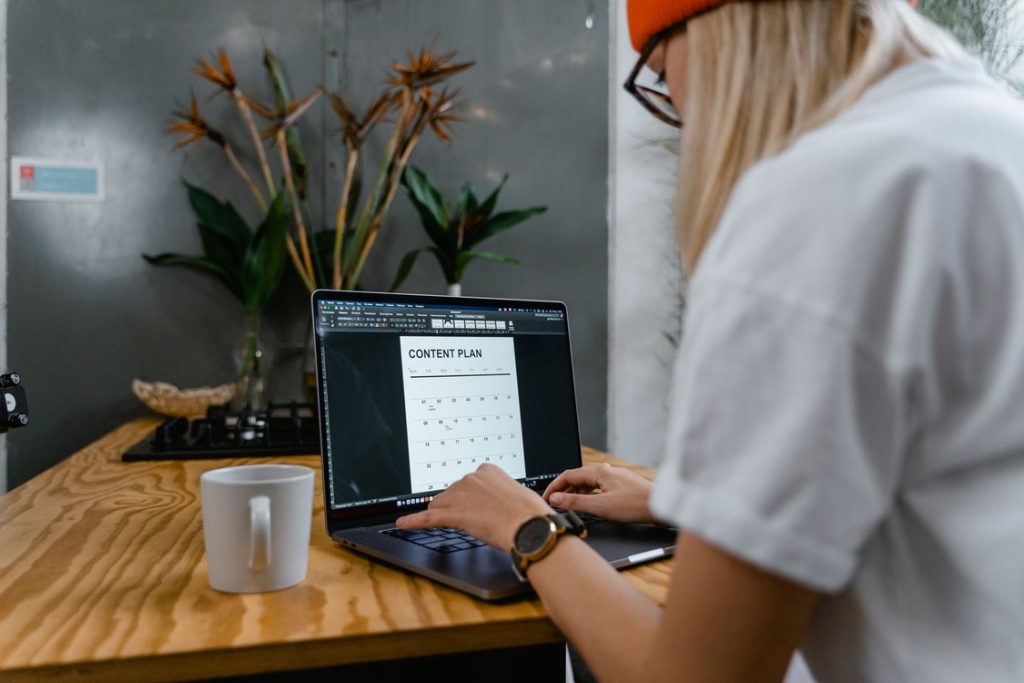
A laptop rarely gives up all at once. It just gets slower in small, annoying ways: sign-in takes longer, apps open a beat late, the fan spins up during a simple video call. Most of the time the cause is not a dying machine. It is a pile-up of small things, too many startup programs, a nearly full drive, software that has not been updated in months. Microsoft’s own list of reasons a PC runs slowly starts with exactly those, and Apple’s list for Macs is much the same. The good news is that learning how to speed up a slow laptop is mostly a matter of working through a short list in the right order.
So this guide on how to speed up a slow laptop starts with the quickest and safest fixes, the free software changes before anything involving a screwdriver. The honest part comes at the end: how to tell when no fix will rescue the machine and a reset, or a replacement, is the real answer.
Key Points
- Restart and update first: the quickest, safest fixes come before anything else.
- Trim the startup crowd: disable the apps you do not need in the first minute of the day.
- Keep at least a tenth of the drive free so the system has room to work.
- Run a malware scan if the laptop slowed down suddenly.
- An SSD and extra RAM are the only upgrades worth paying for, and only when the checks point to them.
In This Guide
- Step 1: Restart It, Then Update Everything
- Step 2: Cut the Startup Crowd
- Step 3: Free Up Disk Space
- Step 4: Tame the Browser
- Step 5: Run a Malware Scan
- Step 6: Let It Breathe
- Step 7: The Two Upgrades That Actually Matter
- When to Reset, and When to Replace
- Frequently Asked Questions
- How to Speed Up a Slow Laptop: The Short Version
Step 1: Restart It, Then Update Everything
The first step in how to speed up a slow laptop is also the least glamorous: restart it properly. A restart clears memory, closes stuck background processes and finishes updates that were waiting in the background, and it is the quickest way to free up RAM on laptop machines that have only been sleeping for weeks. If yours has not had a real restart in a long time, this alone can change how it feels.
On Windows, use Start, then Power, then Restart, which does a fuller reset than Shut down. On a Mac, choose Restart from the Apple menu and untick the option to reopen windows, so every old app does not reload at once.
Then update. Windows: Settings, Windows Update, Check for updates, plus Advanced options, Optional updates, where driver updates often sit uninstalled. Mac: System Settings, General, Software Update. Updates carry performance fixes, and this unglamorous groundwork is where how to speed up a slow laptop almost always starts.
Step 2: Cut the Startup Crowd
If yours is a Windows laptop slow after startup but fine an hour later, this is your section. Too many startup programs is one of the most common reasons a laptop feels old. Every chat app, game launcher, printer helper and cloud tool that launches itself competes for the same memory and processor while the system is still waking up, and trimming that list is the fastest way to speed up Windows laptop sign-in times.
On Windows, press Ctrl + Shift + Esc to open Task Manager and open the Startup apps section. Work down the list and disable anything you do not need in the first minute of the day. Task Manager shows a Startup impact rating for each app, which makes the worst offenders easy to spot. Disabling is not uninstalling. The app still opens normally whenever you click it, and for a machine that only drags in the morning, this one change is the heart of how to speed up a slow laptop.
On a Mac, go to System Settings, General, Login Items and Extensions. Under Open at Login, remove what does not need to start with you, and check the background activity list on the same page for software you barely use. Keep your antivirus and anything you rely on for backup or syncing. The goal is a shorter queue at sign-in, not a stripped machine.

Step 3: Free Up Disk Space
A nearly full drive slows a laptop down in ways people do not expect. The system needs spare room for temporary files, updates and the overflow it uses when memory runs short. Both Microsoft and Apple put low disk space near the top of their checklists, so freeing space earns its place early among slow laptop fixes.
On Windows, open Settings, System, Storage. Turn on Storage Sense, and run it now rather than waiting. The Temporary files page there lists what can be removed safely. Then uninstall apps you no longer open, under Settings, Apps, Installed apps. Old games and abandoned trials usually free the most space for the least effort.
On a Mac, open System Settings, General, Storage and read the recommendations macOS offers. The useful ones are storing files in iCloud, optimising storage by removing watched TV shows and films, and emptying the Trash automatically, and together they are the simplest way to speed up MacBook storage problems without deleting anything you care about. The Downloads folder is worth a manual look on both systems. It is where large installers and forgotten videos go to retire.
How much free space is enough? Neither maker publishes a magic number, and anyone who quotes an exact figure is dressing up a guess. A practical rule of thumb is to keep at least a tenth of the drive free, and more if you can manage it. That is why freeing space sits this high in any honest guide on how to speed up a slow laptop.
Step 4: Tame the Browser
For a lot of people, the laptop is not slow. The browser is. Forty open tabs, a dozen extensions and three pinned web apps can eat more memory than everything else on the machine combined, and Microsoft’s own advice includes the blunt version: close the apps and tabs you do not need. Taming the browser is an underrated part of how to speed up a slow laptop.
Go through your tabs honestly and bookmark what you want to keep. Then open the extensions page and remove anything you do not recognise. Extensions run constantly in the background, and the ones bundled with free downloads are frequent stowaways. If the fan starts howling while you browse, check Task Manager or Activity Monitor: one heavy page is usually at the top of the CPU list, not the whole internet.
Step 5: Run a Malware Scan
Malware and adware are performance problems as well as security ones. Microsoft makes the point directly: unwanted software consumes processor and disk time, which is why a scan belongs in any serious routine for how to speed up a slow laptop that changed suddenly. A machine that was fine last month and crawls this month, especially one showing new toolbars or pop-ups, deserves this step even if the earlier ones helped.
On Windows the tools are already installed. Open Settings, Privacy and security, Windows Security, then Virus and threat protection, and run a Quick scan. If it finds something, or the strange behaviour continues, run a full scan afterwards and let it finish, even if it takes a while. A clean result matters too: it rules out the worst reason a machine slows down, and the rest of how to speed up a slow laptop is routine by comparison.
A Mac has no equivalent scan button. macOS watches for known threats in the background by itself, which is another reason the update step matters. Your part is simpler: remove suspicious apps and browser extensions, then restart and see whether the behaviour is gone.
Step 6: Let It Breathe
A laptop that gets hot gets slow, on purpose. When the processor runs too warm, the machine cuts its speed to protect itself, so a laptop overheating problem often looks like a software problem: fine for ten minutes, then sluggish until it cools down. Heat is the forgotten half of how to speed up a slow laptop.
You can help it without opening the case. Use the laptop on a hard, flat surface rather than a bed or sofa, where fabric blocks the underside vents, and check the side and rear vents are clear. Fans that are loud during light work usually mean dust in the vents, and a careful blast of compressed air from outside can shift some of it. Persistent heat after that is a repair shop job, not another settings change. None of this costs anything, which is why the heat check sits in the free half of how to speed up a slow laptop.
Step 7: The Two Upgrades That Actually Matter
Everything above is free, so upgrades are the last resort in how to speed up a slow laptop, not the first. Before you spend anything, check what is actually straining. Open Task Manager’s Performance tab on Windows while you work normally. On a Mac, open Activity Monitor and look at the Memory Pressure graph: green means memory is coping, yellow or red means it is under strain, as Apple explains it. Those two screens tell you which upgrade, if any, your laptop is asking for.
More memory helps when memory pressure is yellow or red with only your normal apps open, or when Task Manager shows memory pinned near the top all day. Many Windows laptops let you add or swap modules, and it is a cheap upgrade where possible. Many thin laptops, and every Mac with Apple silicon, cannot be upgraded after purchase, so check your exact model first.
An SSD is the big one when the laptop still has a spinning hard drive, which Task Manager’s Performance tab will name for you. Hard drives are mechanical and slow at the small, constant reads a modern system makes; an SSD does that work several times faster. If your machine already has an SSD, a replacement buys space, not much speed.
And skip registry cleaners and memory booster apps. Microsoft does not support registry cleaners, and boosters cannot create memory out of thin air. They just add one more background program to the machine you are trying to unburden.
When to Reset, and When to Replace
If you have tried every software fix for how to speed up a slow laptop and it is still slow at everything, back up your files and consider a reset. Windows has one built in: Settings, System, Recovery, Reset PC, with an option to keep your personal files while the system itself is reinstalled clean. On a Mac, newer versions offer Erase All Content and Settings under System Settings, General, Transfer or Reset, which does the same kind of clean start. A reset removes years of accumulated software in one move. It also removes your apps, so treat it as a planned weekend job, not a quick tweak.
Replacement is the honest answer in a few situations. Windows 10 support ended in October 2025, and many older laptops cannot officially run Windows 11, so a machine stuck on an unsupported system is living on borrowed time. A swelling battery means stop and get it seen to, because that is safety, not performance. And if a repair quote approaches the price of a modest new laptop, the new laptop usually wins. Replacement is not a failure of how to speed up a slow laptop. Sometimes it is the conclusion.
Frequently Asked Questions
Why is my laptop so slow all of a sudden, and where do I start?
Restart it first, then open Task Manager on Windows or Activity Monitor on a Mac and look for a single app using far more CPU or memory than the rest. Sudden slowdowns usually have one loud cause, and those two screens will show it to you. If nothing obvious appears, run the malware scan from Step 5. It is the same starting point almost every guide on how to speed up a slow laptop recommends, because it rules out the worst option early.
How much free disk space do I actually need?
There is no official number. Microsoft and Apple both say a nearly full drive hurts performance without naming a percentage to aim for, even though plenty of articles on how to speed up a slow laptop quote one as if it were a specification. Keeping at least a tenth of the drive free is a sensible rule of thumb, and the closer to full your drive is now, the bigger the improvement you are likely to feel from a cleanup.
Will adding RAM always speed up my laptop?
No. Extra memory only helps if memory is the bottleneck, which Task Manager or the Memory Pressure graph on a Mac will tell you. If memory sits half empty while the processor or disk is maxed out, more RAM changes nothing, and some laptops cannot be upgraded at all. Checking first is the difference between how to speed up a slow laptop and how to waste money on one.
Is an SSD upgrade worth it on an old laptop?
If it still runs on a hard drive, usually yes: storage speed affects startup, opening apps and waking from sleep all at once, which is why this upgrade tops most budget advice on how to speed up a slow laptop. If it already has an SSD, expect little from a swap beyond extra room. Either way, back everything up before the old drive comes out.
Do cleaner and booster apps actually work?
Not in the way their ads suggest. Microsoft does not support registry cleaning tools, and memory boosters cannot add capacity your hardware does not have. The built in tools covered in this guide on how to speed up a slow laptop, Storage Sense on Windows and the storage recommendations on a Mac, do the useful parts of the job for free, without installing yet another background program.
How to Speed Up a Slow Laptop: The Short Version
Most cases of a laptop running slow come down to a handful of fixable things: a startup list that grew teeth, a drive with no breathing room, an out of date system, or one greedy app. Work through the steps in order and stop when the machine feels right again, because for most people that happens somewhere around Step 3. Knowing how to speed up a slow laptop is mostly knowing which fix to try next, and when the honest answer is that the hardware has had its day.
For more guides on how to speed up a slow laptop and keep it that way, browse our Technology section. And if you enjoy reading about the sites and tools behind the screen, our Zavalio Com guide looks at a publication that covers technology topics among many others.

Written by Danish Ali
Danish covers technology, software and business tools for Burry Blog. He tests how platforms actually work, compares the options honestly, and explains the practical steps in plain language.