

It usually starts the same way. A link arrives in a text message, an ad shows a jacket at half the price you saw yesterday, or a search result promises a free download. You open the page, it looks fine, and your finger is already hovering over the sign up button. That is the exact moment to stop for sixty seconds.
You check because the cost of being wrong is real: a card charged twice, an account taken over, a download that slows your laptop to a crawl. The checks are simple, they take about a minute, and they come from Google, the FTC and CISA. More practical guides like this one live in our Technology section.
Key Points
- A padlock means the connection is encrypted, not that the site is honest.
- Read the domain letter by letter; copycats change one letter, add a hyphen or hide behind a subdomain.
- Search the site’s name plus “complaint” or “scam”, and take a full-page red warning from Google Safe Browsing seriously.
- Pay by credit card when you can; never pay by gift card, wire transfer, payment app or cryptocurrency.
In This Guide
- How to Check If a Website Is Safe in Sixty Seconds
- The Padlock Proves Less Than You Think
- Read the Address Like a Proofreader
- Let Google Tell You What It Already Knows
- What Each Check Actually Proves
- How Old Is the Domain, and Why That Only Helps a Little
- Reviews Lie in Both Directions
- The Page Itself Gives the Game Away
- The Last Check Before You Pay
- Keep Your Own Side Clean
- If You Already Typed Something In
How to Check If a Website Is Safe in Sixty Seconds
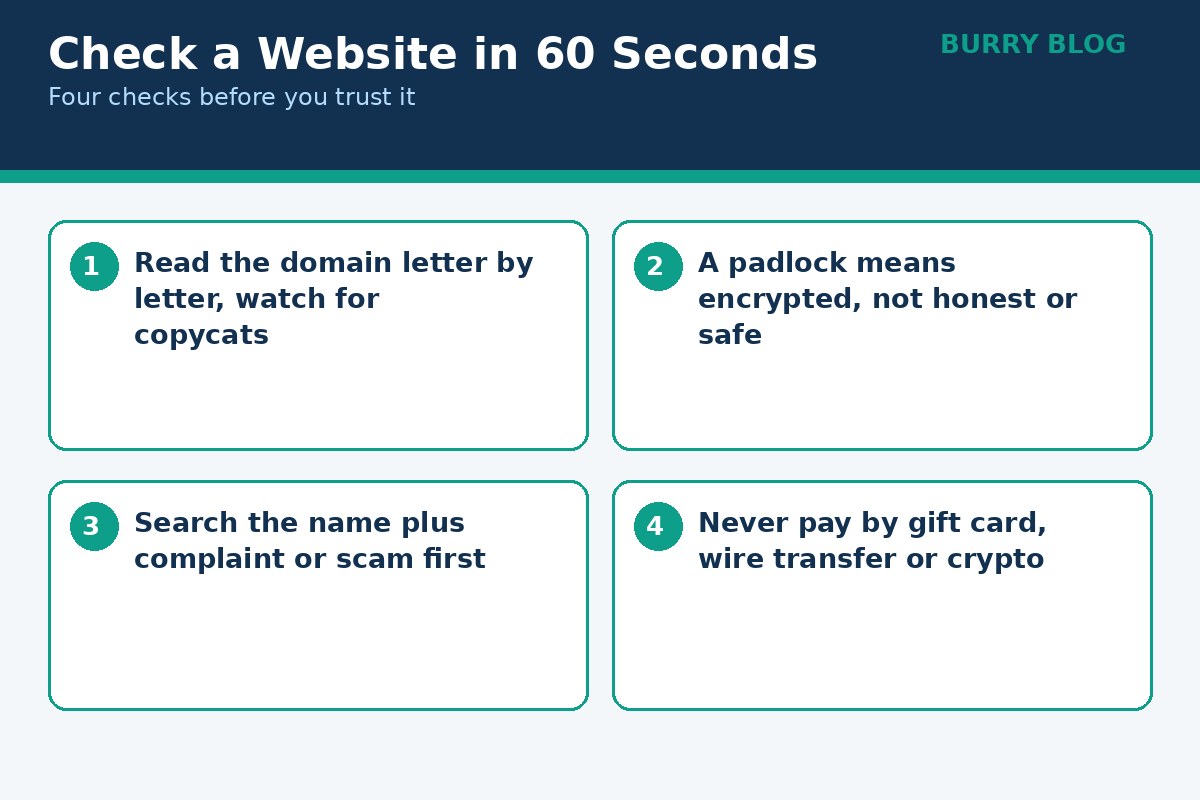
Start with the address bar, not the page. Read the full domain name slowly, letter by letter. Then look at the security icon to the left of the address. If you see a full page red warning instead, stop: Google Safe Browsing has flagged the site as dangerous, and Google’s help page says not to use it.
Next, search the site’s name along with the words complaint or scam: the FTC’s own suggestion, because unhappy customers and scam reports surface fast. A site that exists nowhere except on its own pages is a warning in itself. Finally, check for a real address, a working phone number and a returns policy in plain language. If any check feels off, walk away.
The Padlock Proves Less Than You Think
The padlock means the connection is encrypted, so nobody in the middle can read what you send. It does not mean the site is honest. The FTC says this directly: the “s” after http means the site is encrypted, but it does not mean it is a legitimate site, because scammers know how to encrypt sites too.
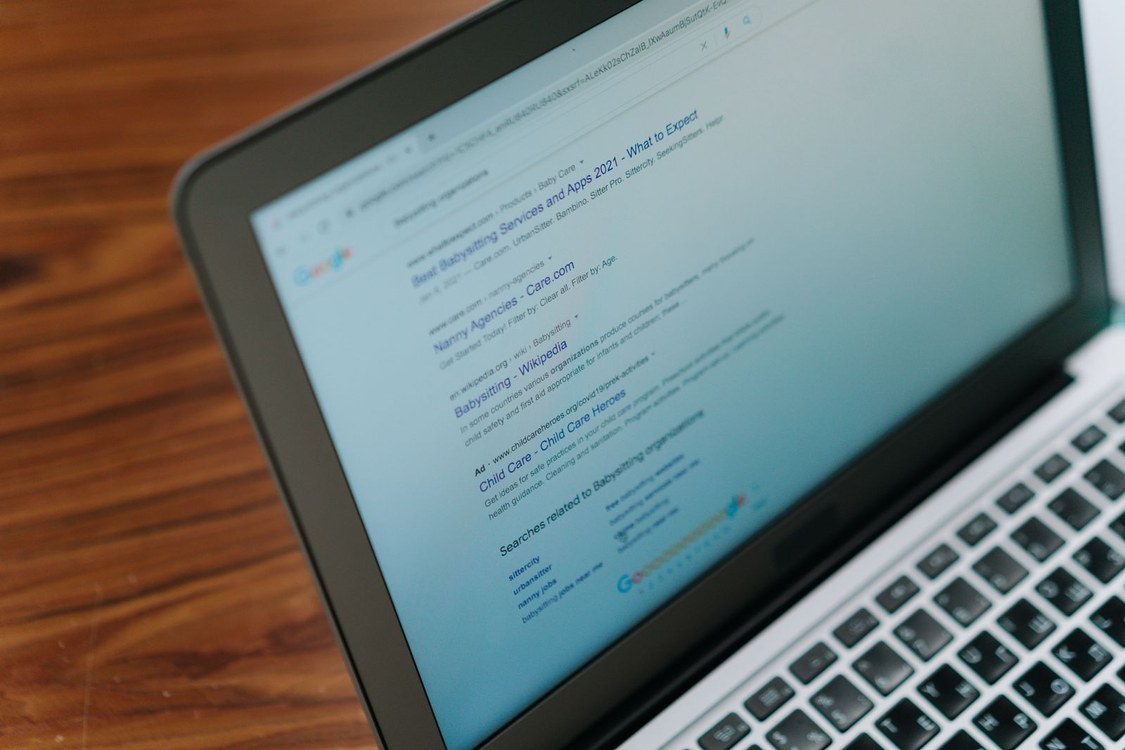
So treat HTTPS as a minimum requirement, not a pass mark. A site that shows “Not secure” in the address bar is a site you should not type anything into at all. Google’s help page is blunt: on a “Not secure” page, someone may be able to view and change the information you send, and on a “Dangerous” page you should not enter any personal information and, if possible, not use the site at all. A site with a padlock still has to pass every other check in this guide.
Read the Address Like a Proofreader
Most fake websites borrow a real name and change a detail small enough that your eyes skip past it. CISA’s example is a domain with a letter swapped or added.
Slow down and read the domain as if you were proofreading it for a friend. Watch for a swapped letter, an extra word joined with a hyphen, like a bank name followed by “secure-login”, and a brand name used as a subdomain, so the real domain is something else. The part that counts is just before the first single slash after https. Also watch for lookalike letters: a lowercase L and the number 1, a capital O and a zero, or “rn” where an “m” should be. Shortened links deserve the same suspicion: CISA lists untrusted shortened URLs among the signs of phishing, because a short link hides its destination. On a computer, hover over a link to read the full address. On a phone, press and hold it to preview where it goes.
Let Google Tell You What It Already Knows
Google Safe Browsing scans the web and flags sites that host malware, run phishing pages or behave in other dangerous ways. When Chrome shows you a full page red warning, that is Safe Browsing speaking. A clean design and perfect spelling prove nothing: CISA notes that AI generated phishing messages can now have correct spelling and grammar too.
There is also a quieter tool built into Chrome. The “About this page” option, found by clicking the icon to the left of the address, pulls up web results about the source, a description in the site’s own words, and when the page was first indexed by Google. Safe Browsing also misses new scam sites for a while, because scammers register fresh domains constantly.
What Each Check Actually Proves
Every check answers one question and stays silent on the rest.
| Check | What it tells you | What it does not tell you |
|---|---|---|
| HTTPS padlock | Connection is encrypted | Owner is honest |
| Domain spelling | You are on the intended site | That site is trustworthy |
| Safe Browsing flag | Google has seen danger here | An unflagged site is safe |
| Domain age | How long the domain existed | The current owner is legitimate |
| Reviews, many sources | What others experienced | The reviews are real |
| Contact details | The business can be reached | It follows its own rules |
| Payment method | Whether money can be recovered | The product will arrive |
How Old Is the Domain, and Why That Only Helps a Little
A domain lookup shows when a site was registered and who registered it. ICANN runs a free registration data lookup tool using RDAP, the modern replacement for the old WHOIS system. It returns the creation date, the registrar, and whatever contact details are public, straight from the registry in real time.
A domain created three days ago that claims to be a famous retailer is a red flag. And a domain with its registration details hidden behind a privacy service is not proof of anything on its own: plenty of honest small sites use privacy protection, and plenty of scam sites register in the open. Treat domain age as a weak signal, one that supports other evidence but never settles the question alone.
Reviews Lie in Both Directions
Reviews feel like the easiest check, and they are the easiest to fake. The FTC warns that some reviews and ratings are fake or misleading, and that fake reviews can be positive or negative. Some reviewers receive a free product or another incentive for writing, and while some sites label those reviews, many do not.
So read reviews with a critical eye, and read them in more than one place. The FTC suggests checking review and retailer sites, search engines, app stores and social media, and considering where a review is posted, who wrote it, and the reviewer’s history. A site whose only reviews live on its own pages, all five stars and all posted within the same week, is not showing you reviews. It is showing you advertising. The same caution applies to comparison sites: some only list or rank products when sellers pay them, the FTC points out. Real complaints tend to be specific, an order number, a date, a product that never arrived. Fake praise tends to be vague, repeated twenty times with different names.
The Page Itself Gives the Game Away
A dishonest site usually tells on itself before the checkout. The signs are not technical.
Pressure is the first sign. The FTC lists rushing you as one of the classic signs of a scam. On a website the same pressure shows up as countdown timers, warnings that only two items are left, and pop ups that demand your card details to claim a coupon. A real business wants your order. A scam wants your hurry.
A price that makes no sense is the second sign. Expensive brand name items at a fraction of their normal price are, in the FTC’s words, possibly counterfeit or stolen. The harsher reading is that there is no product at all. The third sign is absence: no working contact details, no returns policy, no delivery information, or a promise to ship with no time frame. The FTC notes that sellers must ship as promised, or within 30 days if no time was promised, and must say whether you can return an item for a full refund. A site that hides those basics is not a shop. It is a form that collects card numbers.
The Last Check Before You Pay
Pay by credit card when you can: the FTC says it best protects you, because if you are charged twice, billed for something that never arrived, or sent the wrong item, you can dispute the charge. To use that right, call your card company immediately and send a letter that reaches them within 60 days of the first bill showing the error.

The FTC is absolute here: never buy from a seller that insists you can only pay with gift cards, by wire transfer, with a payment app, or with cryptocurrency. These payment methods make it hard or impossible to get your money back, which is exactly why scammers ask for them. A seller that refuses every reversible payment method has told you everything you need to know. Before you type the card number in, run one final pass: is the checkout page itself on HTTPS, and does the site ask only for the details a purchase needs? A checkout that wants your social security number or access to your contacts is not a checkout. And keep records of what you buy: the company name, what you ordered and when, what you paid, the return policy, and every email you exchange. The FTC lists exactly these records, because a dispute without records is a hard argument to win.
Keep Your Own Side Clean
Checking the site is only half the job. The other half is the device you are checking it from. CISA’s advice starts with the basics: keep your browser up to date with the latest security patches, turn on automatic updates, and restart the browser regularly so the updates take effect. An out of date browser is an open door.
CISA advises blocking third-party cookies, which track your browsing habits, and clearing the ones already stored. It also advises against giving websites access to your location, camera or microphone unless the site genuinely needs them. Extensions deserve the same suspicion you give websites: vet them before adding them, because a malicious extension can see everything you type. CISA also recommends an ad blocker, which can block ads and pop ups that carry malware. A browser that is out of date and loaded with extensions will also run slower, which is why this overlaps with device care: our guide on how to speed up a slow laptop walks through the same clean up from the performance side. And turn on multi-factor authentication on your important accounts: two or more credentials to log in, something you know, something you have, or something you are.
If You Already Typed Something In
If you entered a password on a site you now doubt, change it right away on the real site, not through any link in a message, and turn on two factor login. If you reused that password anywhere else, change it there too.
If you entered card details, call your bank using the number on the card, not a number from the site or the message. If you think a scammer has your personal information, the FTC points you to IdentityTheft.gov, where you will see the specific steps to take based on what you lost. If you downloaded a file, do not open it. Delete it, update your security software, and run a scan. Then report it: the FTC asks you to report phishing at ReportFraud.ftc.gov, forward phishing emails to [email protected], and forward phishing texts to 7726.
Does a padlock in the address bar mean a website is safe?
No. The padlock only means the connection is encrypted. The FTC says the “s” in https means the site is encrypted, not that it is legitimate, because scammers can encrypt their sites too.
How can I check a website without opening it?
Search the site’s name plus the words complaint or scam, and read what others say outside the site itself. You can also look the domain up in ICANN’s lookup tool to see when it was created.
Is a brand new website always a scam?
No. A new domain is a weak signal, not a verdict. A new site with clear contact details, a real returns policy and reversible payment methods is a different thing from a new site with none of those.
What is the safest way to pay on a website I am not sure about?
Pay by credit card. The FTC says it best protects you, because you can dispute the charge if you are billed twice, never receive the item, or get the wrong one. Never pay with gift cards, wire transfers, payment apps or cryptocurrency.
What should I do if a website shows a red warning screen?
Stop and do not enter anything. A full page red warning means Google Safe Browsing has flagged the site as dangerous, and Google’s own help page says not to use it. Reach the company another way, through an address or app you already trust.

Written by Danish Ali
Danish covers technology, software and business tools for Burry Blog. He tests how platforms actually work and explains them in plain language, without the marketing gloss.