

Most people discover backup the day after they needed it. A phone slips out of a pocket on a bus. A bag is stolen. A storage warning gets ignored one time too many, and then the phone stops taking pictures on a holiday. The photos are not gone because anyone was careless. They are gone because there was only ever one copy of them, and it lived in the same pocket as everything else.
The fix takes less than an hour, and most of it is turning on one switch. This guide shows how to back up your phone photos in three moves: turn on cloud backup, add a local copy, and check that the backup actually ran. It works the same on Android and iPhone, and it uses the tools your phone already has. More practical guides like this one live in our Technology section.
Key Points
- Turn on cloud backup first: Google Photos on Android, iCloud Photos on iPhone, and check the status says backup complete.
- Keep three copies on two kinds of storage, with one off-site: the 3-2-1 rule.
- Add a local copy on an external drive, then unplug it so a tap on your phone cannot delete it.
- Check the backup once a month, and restore one photo to another device once a quarter.
In This Guide
How to Back Up Your Phone Photos in Three Moves
A backup plan only works if you will actually run it, so keep it small. Three moves cover the failures that matter: a lost phone, a dead account, and a disaster that takes the whole house. Each move protects against a different kind of loss, and none of them needs a new app or a subscription on day one.
| Method | What it protects | What it costs |
|---|---|---|
| Cloud backup with Google Photos or iCloud Photos | A lost, stolen or broken phone | Free up to 15 GB with a Google Account or 5 GB with iCloud, then a small monthly plan |
| Copy to a computer or an external drive | A locked cloud account or an accidental delete | One drive, bought once, kept at home |
| Second cloud or off-site copy | Fire, flood or theft that takes everything at home | A free tier, or a few dollars a month |
Start with the first row today. Add the second row this week. The third row can wait until the first two are running, but do not skip it forever, because the first two rows both sit in the same house as the phone.
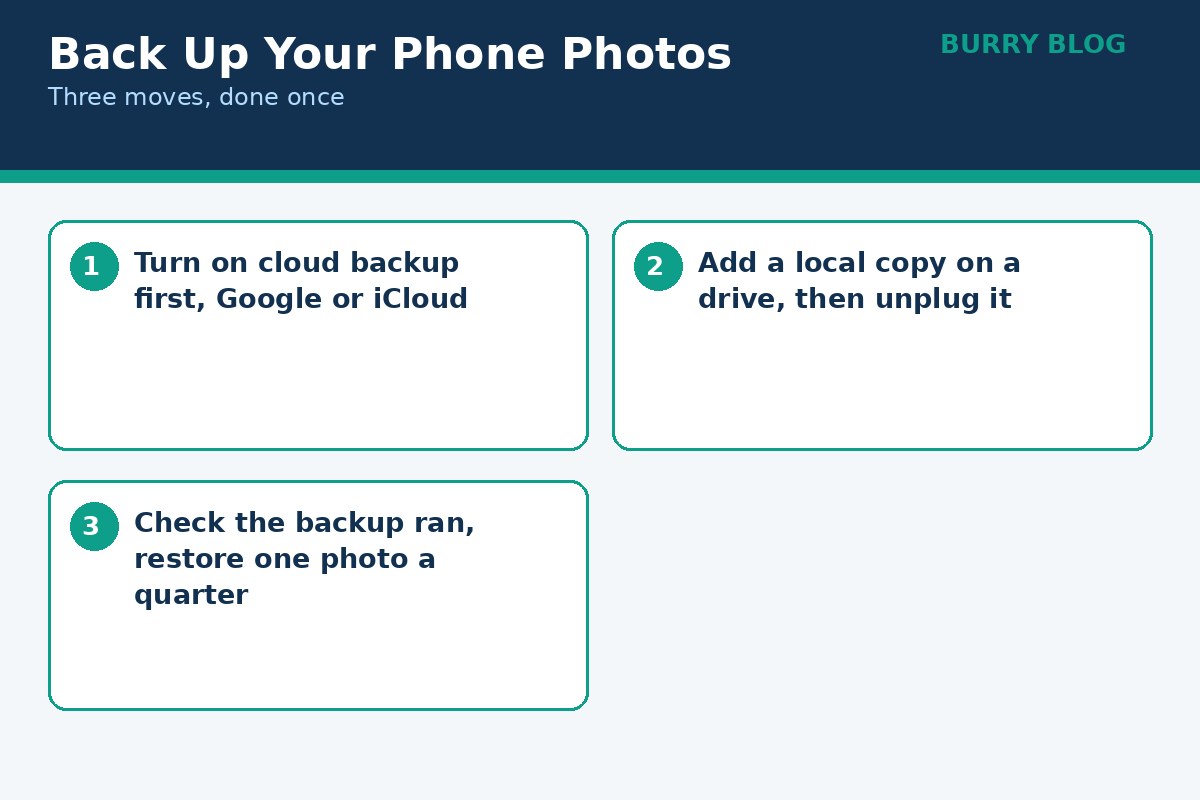
Turn On Cloud Backup First
Cloud backup is the one move that saves photos while you are doing nothing. Once it is on, every photo you take uploads itself when the phone has Wi-Fi, and you can see the whole library from any device signed in to the same account.
On Android, open the Google Photos app, sign in to your Google Account, tap your profile picture or initial at the top right, then tap Photos settings and Backup, and turn Backup on. Google Photos Help says the first upload can take a while, depending on your connection and the size of the library, so leave the phone on Wi-Fi and charging for the first run. You can also back up a single photo by opening it and tapping Back up now, or select several photos and tap Back up. Note that you can back up to only one Google Account at a time, and that your Google storage is shared across Google Photos, Google Drive and Gmail, so a full inbox eats the same 15 GB your photos use.
On iPhone, open the Settings app, tap your name, tap iCloud, tap Photos, then turn on Sync this iPhone. Apple Support says the photos upload automatically and are stored in their original format at full resolution, and any change you make on one device shows up on the others. The same Apple Account must be signed in on every device, and the upload runs best on Wi-Fi with the phone charged.
Two details are easy to miss. First, Google Photos backs up your chosen device folders too, not only the camera roll, so screenshots and WhatsApp photos can be included if you turn those folders on. Second, backup can quietly stop working if battery optimization is turned on for the Photos app on Android, so if uploads stall, that setting is worth checking before anything else.
The 3-2-1 Rule, in Plain Words
The 3-2-1 rule is the oldest sensible advice in backup, and CISA, the US cyber defence agency, calls it a trusted guideline. It reads like this: keep three copies of anything you cannot replace, on two different kinds of storage, with one copy off-site. The original on your phone counts as copy one. The cloud backup is copy two. A drive at home is copy three, and because the cloud copy lives in a data centre far away, it is also the off-site one.
Each number covers a failure the others cannot. Three copies means one bad delete or one corrupt file does not end the story. Two kinds of storage means a problem with one kind, a dead drive or a locked account, is unlikely to hit the other at the same time. One copy off-site means a fire, a flood or a burglary cannot take every copy at once, because the copies were never all in the same building.
There is one trap in the rule that catches most people. A sync service is not a backup. Google Photos and iCloud Photos both sync: delete a photo on your phone and the deletion syncs to the cloud copy too. The photo sits in the trash for about 30 days, and after that it is gone for good. Sync protects you from a lost phone. It does not protect you from a mistaken delete, which is why the local copy matters. A copy on a drive that you disconnect after the backup finishes cannot be deleted by a tap on your phone, and it cannot be reached by ransomware on your computer either.
Copy Them to a Computer or a Drive
The local copy is the cheapest insurance you will ever buy, and it takes about ten minutes. Plug the phone into a computer with its charging cable, unlock the phone, and copy the photo folder to the computer or to an external drive. On a Mac, the Photos app can import from the phone directly. On Windows, the phone appears as a device you can open and copy from, or you can use the Photos app import. Either way, copy the originals, not screenshots of them, and keep the folder names simple so you can find a year later what you are looking at.
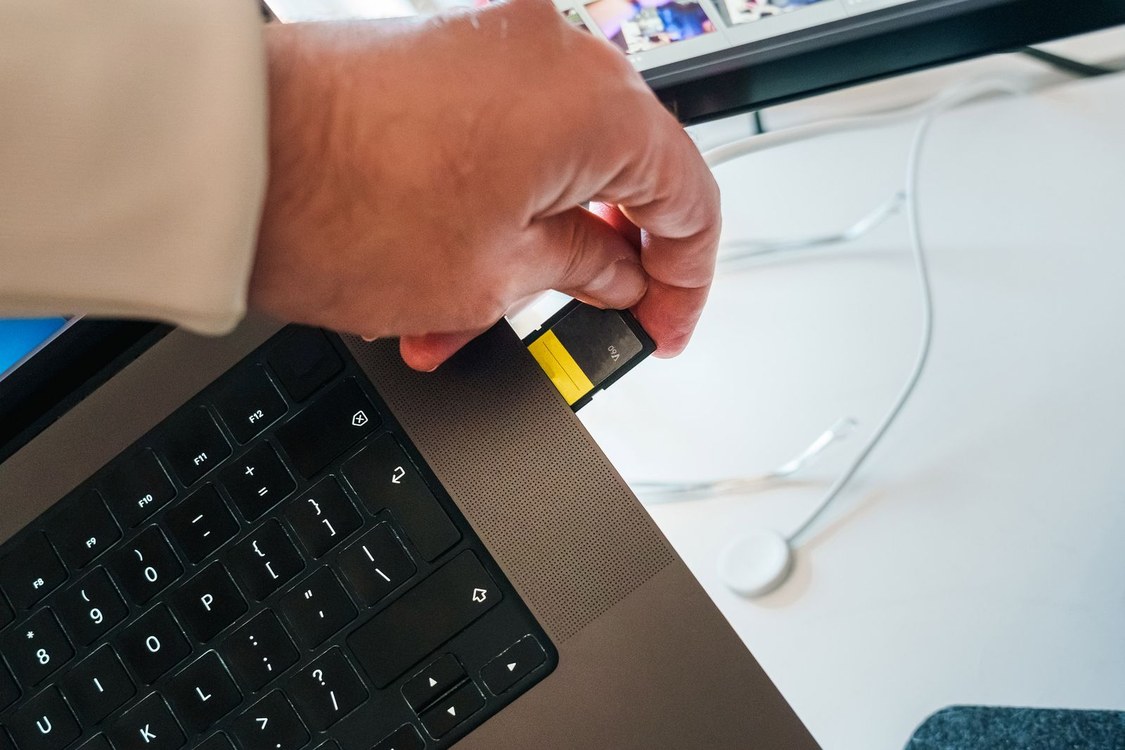
If the computer you copy to is itself short on space or running slowly, sort that out first, or the backup will fail halfway and you will not notice. Our guide on how to speed up a slow laptop covers clearing space and removing what you do not need, which is the same job as making room for a photo library.
An external drive is the better home for the copy, because a laptop gets carried around and dropped just like a phone. Buy one drive, plug it in once a month, copy the new photos, and unplug it again. The unplugging is the point. A drive that stays connected is just another folder on the same computer, and it fails with the computer. A drive in a drawer survives the things a laptop does not.
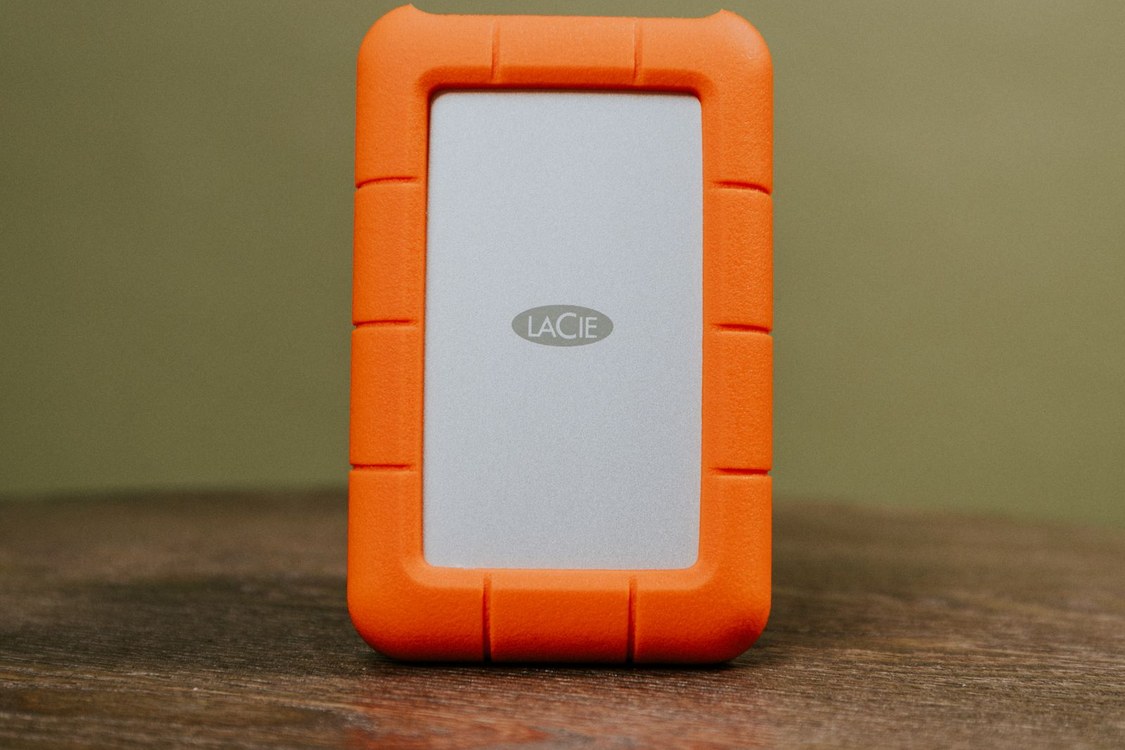
Label the drive with a piece of tape and a pen: photos, and the month you last copied. A backup you cannot find is not a backup.
Check That the Backup Actually Ran
A backup you have never checked is a guess, not a plan. Both Google and Apple make the check easy, and it takes about a minute.
In Google Photos, open the app, tap your profile picture or initial, and read the status. When the upload is finished it reads “Backup complete”. If it says a number of items remain, leave the phone on Wi-Fi and let it finish. You can also check a single photo: open it, tap More, then About, and scroll to Details, where the backup status and size show beneath Backed up. The surest check costs nothing: open photos.google.com in a browser on a different device, sign in to the same Google Account, and look for a photo you took yesterday. If it is there, the backup works.
On iPhone, open the Photos app and tap Collections. The top-right corner shows the syncing status. A yellow badge means syncing is paused. A red exclamation mark means iCloud storage is full. A partially filled blue circle means photos are actively uploading. Tap your account to see the last time the phone synced with iCloud. If you want the upload to start right away, tap your account profile, then Sync Immediately, then For Today. Apple notes that this can use more battery and mobile data, and it pauses if Low Power Mode or Low Data Mode is on.
Do this check once a month, on the same day you pay a bill or do another routine chore. A backup that stopped three months ago is almost as bad as no backup at all, and the only way to know is to look.
When Storage Runs Out
Every free plan runs out eventually, and the warning usually arrives at the worst moment. A Google Account gives you 15 GB shared across Photos, Drive and Gmail. An Apple Account gives you 5 GB shared across Photos, iPhone backups and iCloud Mail. A few thousand photos fit in 5 GB at best, and videos eat it far faster. A family with years of pictures usually needs a paid plan or a drive, and that is normal, not a failure.
When the warning appears, you have three honest options. First, clean up: delete blurry shots, duplicates and accidental videos, and empty the trash so the space is really freed. Second, buy more storage: both Google and Apple sell larger plans for a small monthly fee, and one plan covers the whole account, not just photos. Third, move originals to the external drive and then delete the cloud copies you no longer need, but only after you have checked the drive copy opens and looks right.
What you must never do is delete photos from the phone to make space before the backup has finished. If the cloud copy is not there yet, deleting the phone copy deletes the only copy. Check the status first, wait for “Backup complete” or a clear sync badge, and only then free the space.
Freeing Space Without Losing the Only Copy
Once the backup is confirmed, freeing space is safe, and both systems have a built-in way to do it. In Google Photos, the “Free up space” option removes device copies of photos that are already backed up, keeping the cloud copy and freeing the phone. On iPhone, Optimize iPhone Storage does the same job automatically: full-resolution originals stay in iCloud, and smaller versions stay on the phone. It is turned on by default. If you want every original on the phone as well, go to Settings, tap your name, tap iCloud, tap Photos, tap iPhone Storage, then tap Download and Keep Originals, but only do that if the phone has room for the whole library.
A word of caution about the order of operations. Freeing space and deleting are the same action with different timing. The safe order is always the same: back up, check the backup, then free the space. Reverse the order once and the lesson is permanent.
The One Test Nobody Does
Here is the test that separates a real backup from a comforting belief. Pick one ordinary photo, one you can spare, and restore it from the backup to a different device. Open it. Look at it. If it opens at full size, your backup works. If it does not, you have found the problem on a quiet afternoon instead of the day after a theft.
CISA advises testing backups on a schedule, and for a family photo library once a quarter is enough. Put it on the calendar next to something you already do four times a year. The test takes ten minutes, and it is the only part of this guide that proves the rest of it.
Photos are the one thing on a phone that cannot be downloaded again. Apps can be reinstalled, contacts can be re-entered, messages can be re-sent. A photo of a child’s first birthday exists in exactly one place until you copy it somewhere else. Turn on the cloud backup today, add the drive this week, and check it once a month. That is the whole job, and it is worth doing before you need it.
Frequently Asked Questions
Is Google Photos backup free?
Up to 15 GB, yes, but that storage is shared across Google Photos, Google Drive and Gmail. Once it is full you can clean up old files or buy a larger plan. The backup itself costs nothing to turn on.
Does iCloud Photos back up my photos, or just sync them?
It syncs them. Your photos upload to iCloud and stay identical on every device, which protects you from a lost phone but not from a mistaken delete. If you turn off iCloud Photos on all your devices, you have 30 days to download your photos from icloud.com/photos.
If I delete a photo from my phone, is it gone from the backup too?
With sync turned on, yes, after the trash window. Deleted photos sit in the trash for about 30 days, then disappear everywhere. That is why a separate copy on a drive matters: it cannot be deleted by a tap on your phone.
How do I back up photos without the cloud?
Plug the phone into a computer with its cable, unlock it, and copy the photo folder to the computer or to an external drive. Unplug the drive when the copy is done and store it somewhere safe. It is slower than cloud backup, but it works with no account and no monthly fee.
How often should I check my backup?
Once a month, take one minute to read the backup status in the app. Once a quarter, restore one photo to a different device and open it. A backup that stopped months ago is almost as bad as no backup, and the check is the only way to know.

Written by Danish Ali
Danish covers technology, software and business tools for Burry Blog. He tests how platforms actually work and explains them in plain language, without the marketing gloss.
Pingback: How to Speed Up a Slow Laptop: Fixes That Actually Work